
Features
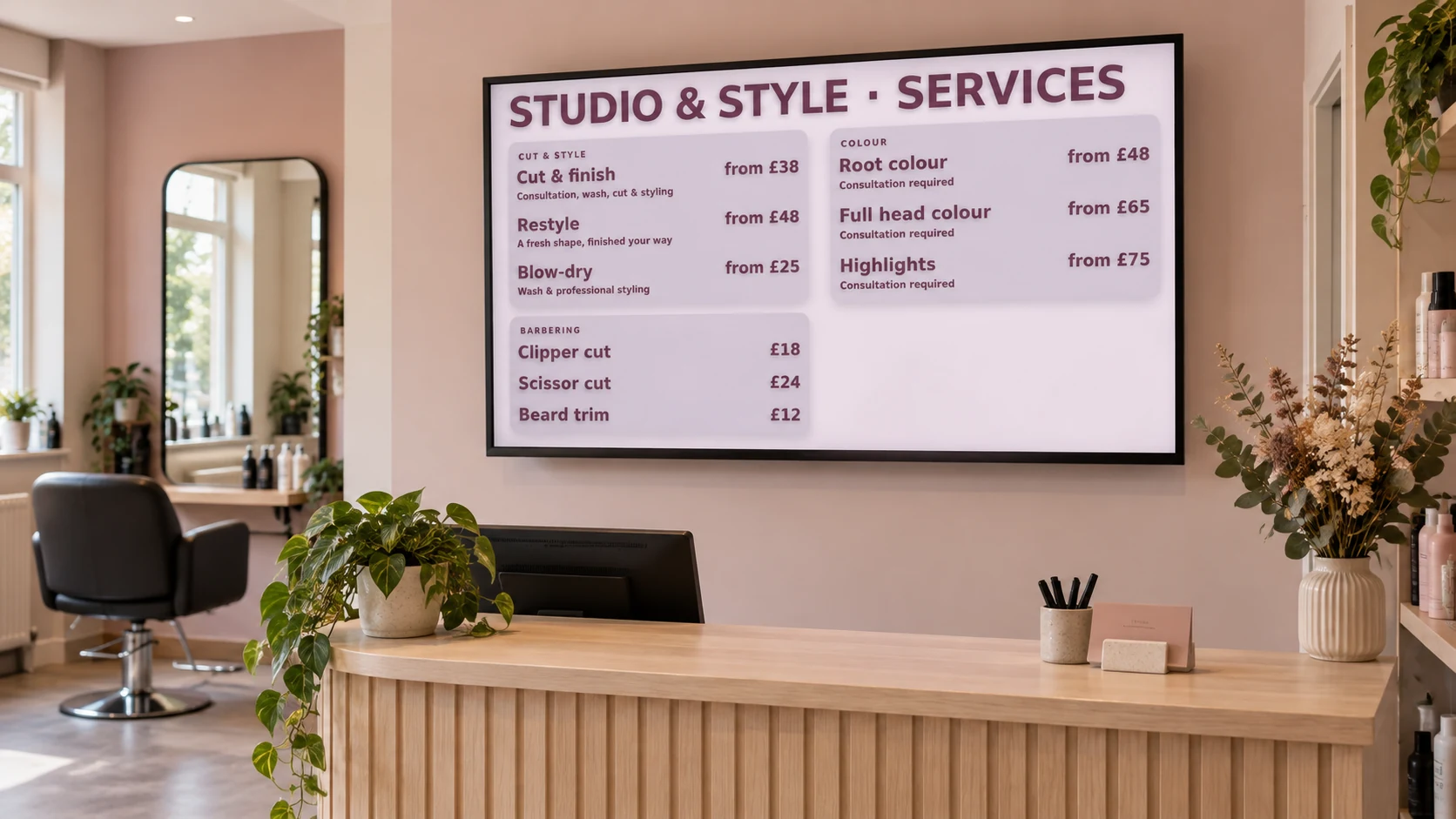
What you can show in your salon
Keep services, prices and promotions current across your salon screens.
EXAMPLES ON SCREEN
See what your screens can show.
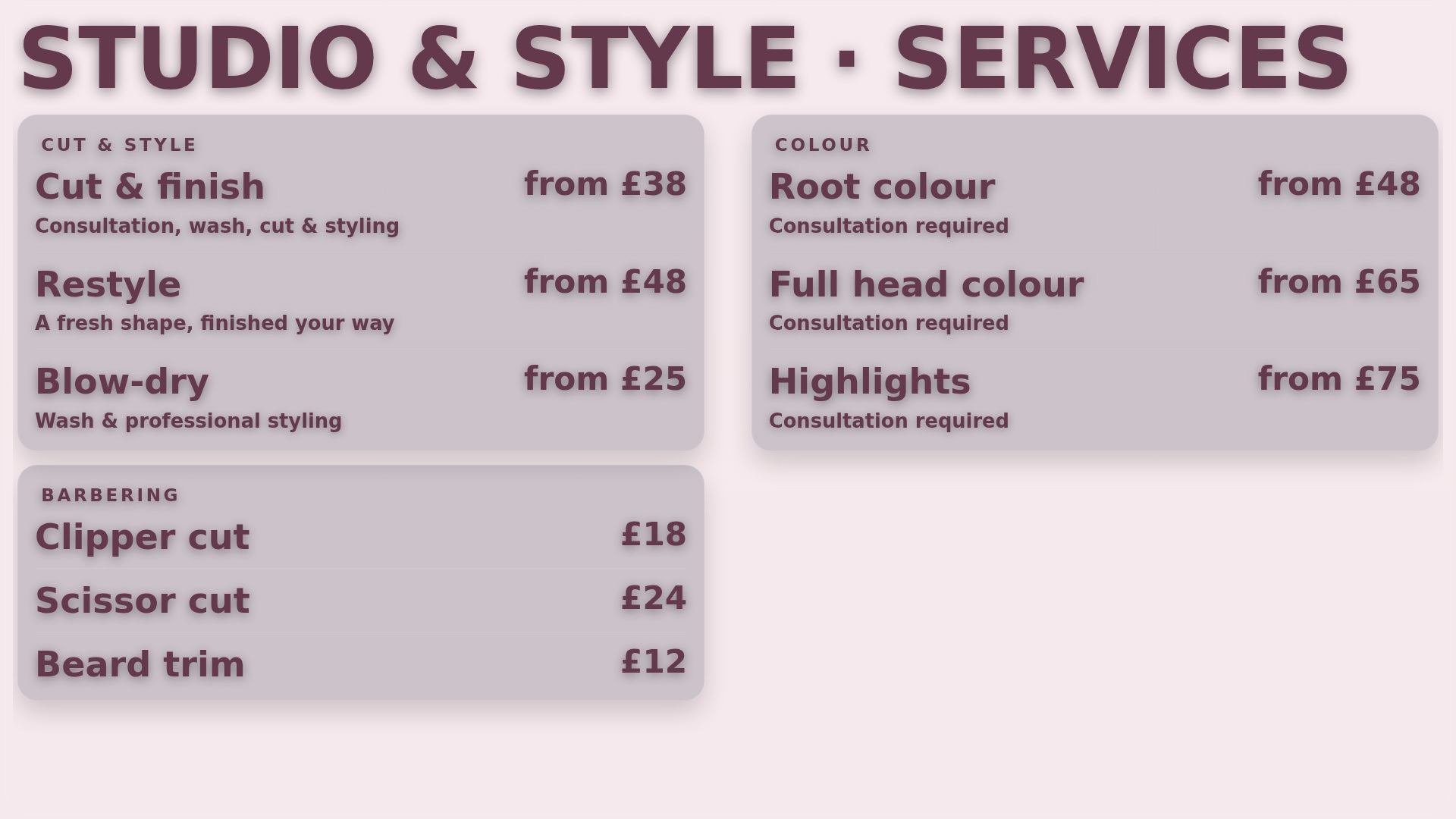
Make your services clear
Help customers compare cuts, colour, treatments and grooming services with a clear, readable screen price list.
More detailLess detail
Give cuts, colour, treatments and grooming services a readable price list.
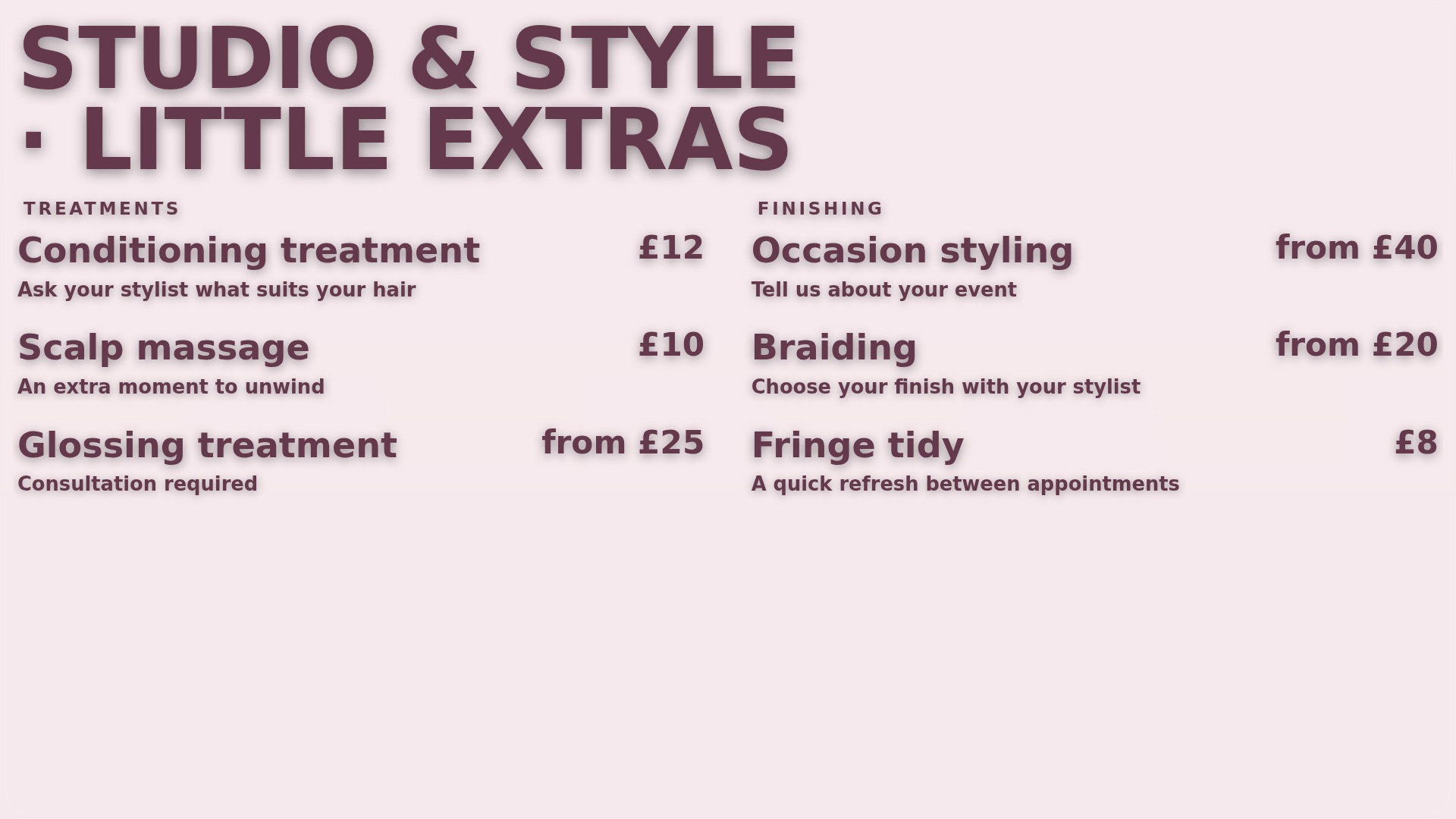
Show the little extras
Introduce treatments, styling products and other useful extras while customers wait for their appointment or service.
More detailLess detail
Introduce conditioning treatments, styling products and add-on services while customers wait.
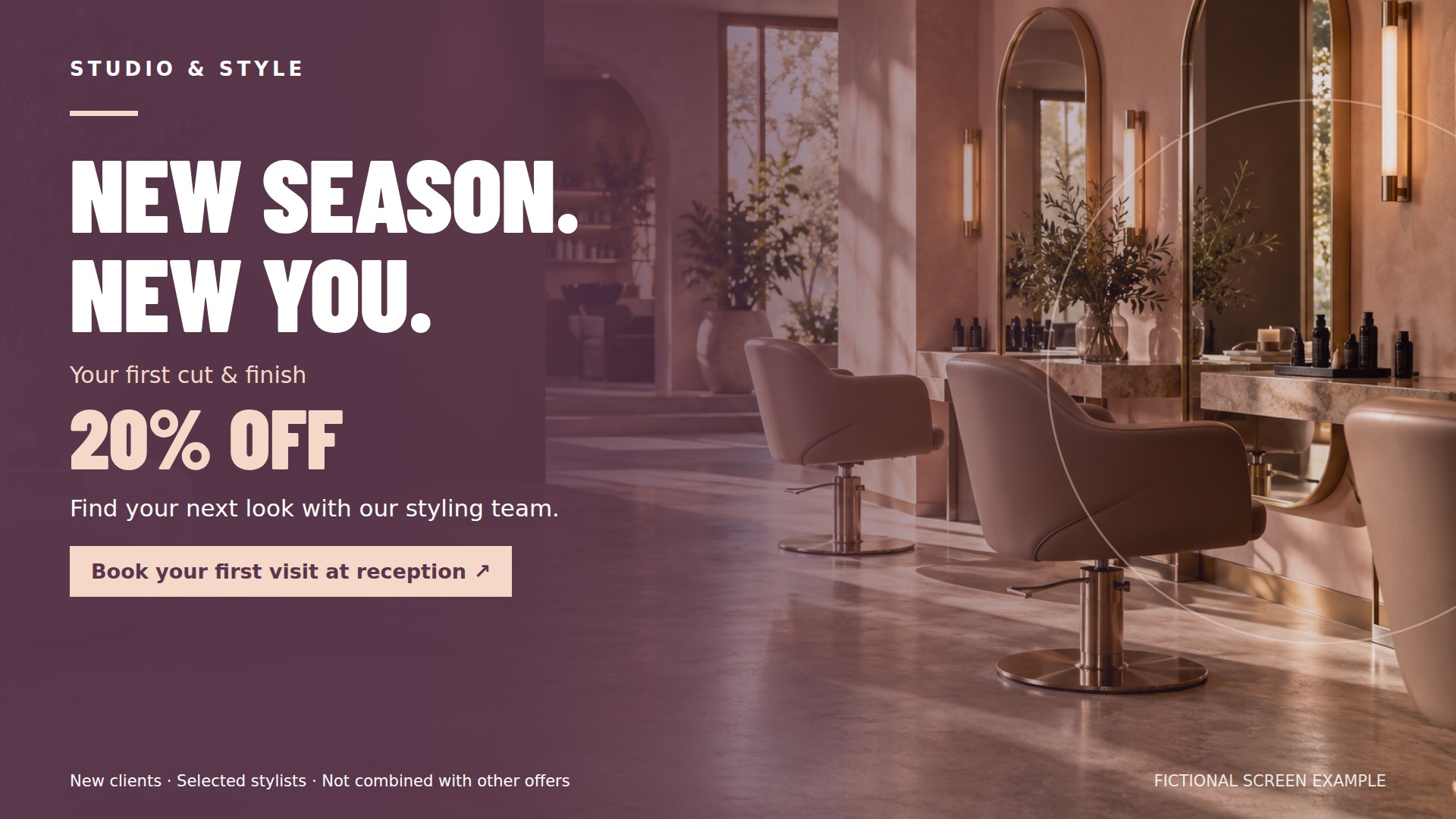
Keep your next offer visible
Keep consultations, seasonal packages and rebooking reminders visible using artwork that reflects your salon’s own style.
More detailLess detail
Promote consultations, seasonal packages and rebooking reminders with your own artwork.
Choose what plays
Arrange salon content into playlists and schedule what plays on different days and at different times.
More detailLess detail
Combine your content in playlists and schedule it for different days and times.
Start with one screen
Start with a compatible screen and add more displays when the setup suits your salon.
More detailLess detail
Use a compatible screen and add more when it suits your business.
Check your screens
Review recent screen check-ins from your account to see which salon players have been reporting.
More detailLess detail
See recent screen check-ins from your DisplayFlow account.
Upload service photography and document-based artwork
Upload your own service photos, videos and documents, then review imported pages before choosing their playlist.
More detailLess detail
Add your own hairstyle photographs, product graphics and MP4 videos to Media. Import a PDF service list or PowerPoint campaign as ordered still images, review the results and add approved pages to a playlist or folder slideshow. Presentation transitions, animations and audio do not carry into the images. Check prices and consultation details before display.
Plan salon campaigns and expire old offers
Schedule service, treatment and product campaigns for each screen, with expiry dates for seasonal offers.
More detailLess detail
Choose the order and duration of service, treatment and product items in a playlist. Give reception, styling stations and retail screens their own content, then schedule changes for different days or campaign times. Set an expiry on a seasonal package or event graphic so outdated artwork stops being selected after the promotion finishes.
Combine branding, booking links and practical pages
Combine branding, booking links and practical information pages while keeping your service details easy to read.
More detailLess detail
Apply reusable text, logo, date/time or QR code overlays to selected playlist items, such as a booking link beside your work. Add a ticker for short salon notices or a Special page for a clock, countdown or weather. Preview the result to keep service information readable. Live weather and external websites require an internet connection.
Check reception and styling-area screen connections
Review reception and styling-area player connections, including available alerts, supported devices and what needs internet access.
More detailLess detail
Give each screen a recognisable name and review recent check-ins from your account. Configure available email alerts to identify a player that needs attention. Android and compatible browsers run the content. Suitable configured players can continue downloaded media when connectivity drops; new price changes and live web content need the connection to return.
Send a temporary reception or service message
Let staff send a temporary appointment direction or service notice to an assigned screen between normal content.
More detailLess detail
Create a named message setting with the destination screen, heading and display duration. Staff can send a short appointment direction or salon notice from admin or the separate staff page. The player collects queued messages at check-in, interrupts its normal content and resumes afterwards. Optional chimes require suitable speakers and audio permissions on that device.
Collect local partner artwork for review
Request local partner graphics through private upload links, then review each submission before adding it to a playlist.
More detailLess detail
If advertiser tools are enabled, store partner contacts, agreed rates and terms with your screen administration. A private, single-use upload link lets a partner submit one JPG, PNG or WebP graphic without dashboard access. Review the artwork in Media before choosing its playlist. Your business remains responsible for advertiser agreements, invoicing and collecting payments.